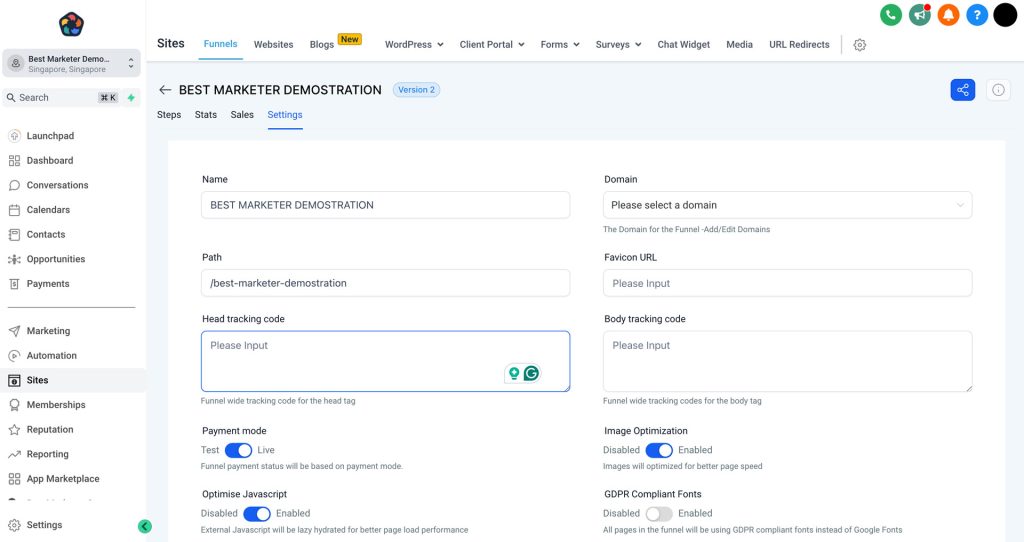
This is a step-by-step tutorial on how to set up the GA4 to record Pageviews into Google Analytics for Funnels/Websites. In this article, we will walk you through setting up your funnel/website to record page views into GA4.
We are going to assume that you have some basic knowledge of Google Analytics, but if not, we recommend checking out GA4 – Beginner’s Guide to Google Analytics
Covered in this article:
Step 1: Log into Google Analytics
Step 2: Go to Admin Settings
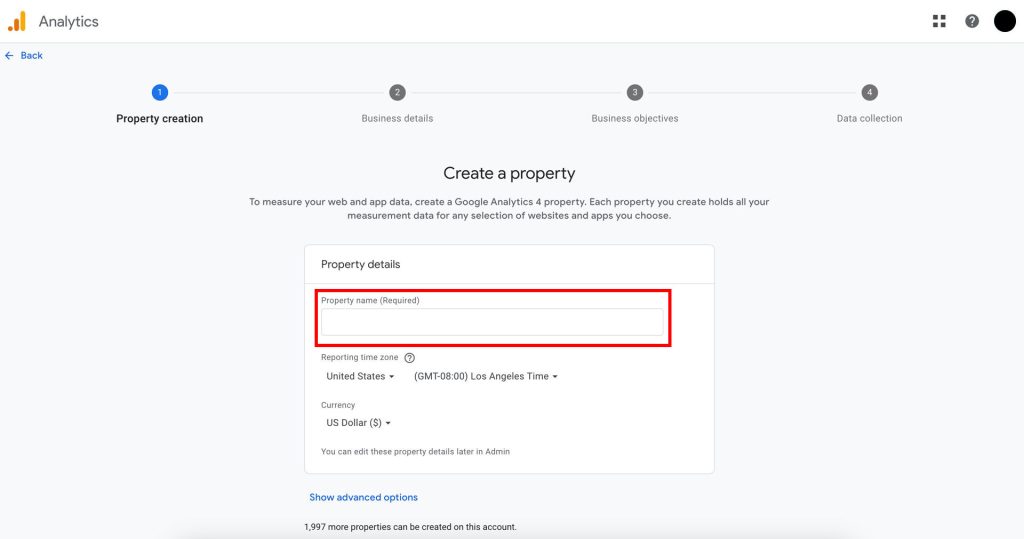
Step 3: Click on the Create Property and add the name of the property
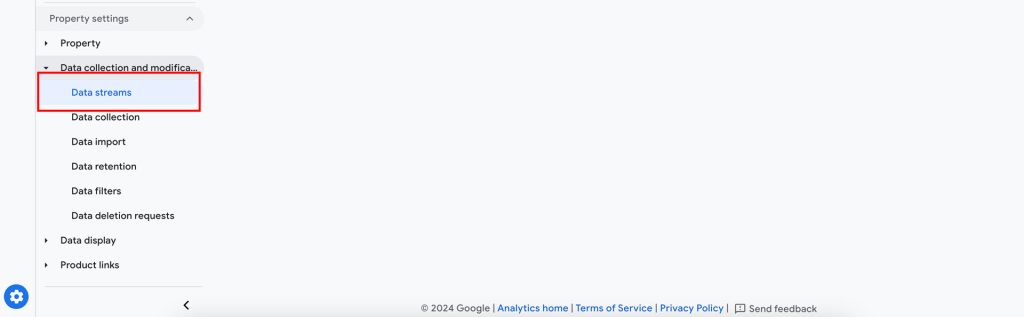
Step 4: Go to Data Stream located within the left menu
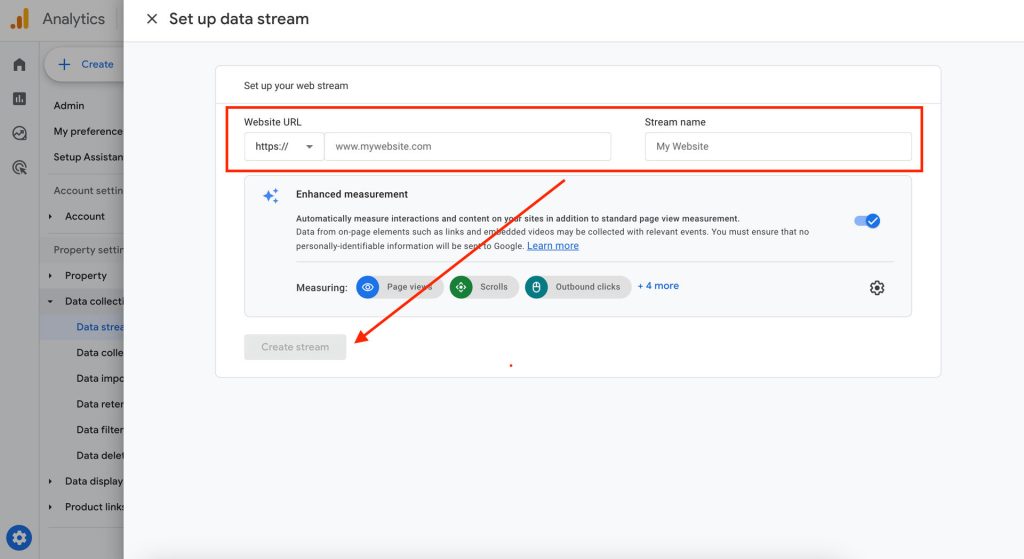
Step 5: Choose the Web option and add the URL of the funnel/website which you would like to track.
Step 6: Add the script (gtag.js) provided inside Google to the Funnel/Website tracking code OR follow the instructions of the Google Tag manager listed below.
- How to add Google Site Tag (gtag.js) to your Funnel/Website
Step 1: Log into Google Analytics
Step 2: Go to Admin Settings
Step 3: Click on the Create Property and add the name of the property
Step 4: Go to Data Stream located within the left menu
Step 5: Choose the Web option and add the URL of the funnel/website which you would like to track.
Once you have added the stream URL and named your stream, please proceed to click on the “Create Stream” button
Step 6: Add the script (gtag.js) provided inside Google to the Funnel/Website tracking code OR follow the instructions of the Google Tag manager given below.
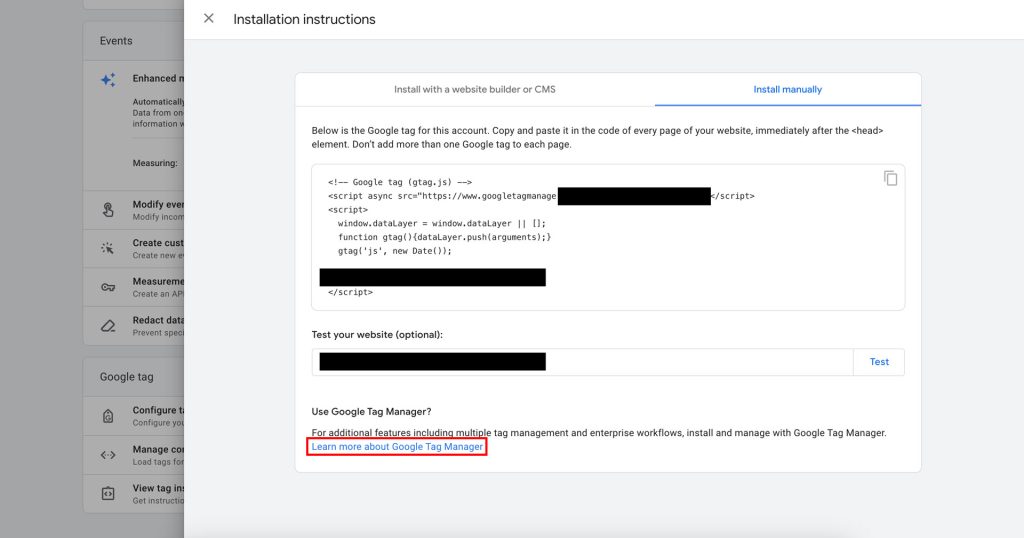
How to add Google Site Tag (gtag.js) to your Funnel/Website <head>